how to hack wifi using laptop cmd

Title: How to seehack wifi password using cmd.
Channel: SKLEARNING
How to seehack wifi password using cmd. by SKLEARNING
Unlock Your Neighbor's Wi-Fi: The Secret CMD Trick!
Baffled by Bandwidth Blues? Ditch the Data Drain with This Hidden CMD Hack!
Are you tired of buffering videos and agonizingly slow downloads? Do you dream of seamless streaming and lightning-fast browsing? Then, perhaps it's time to re-evaluate your internet situation. Fortunately, you might discover a secret weapon, a hidden trick that could change everything. Consider this: are you adequately utilizing all the digital possibilities at your disposal?
Decoding the Digital Dilemma: Is Your Wi-Fi Keeping Up?
Let's face it, internet access is a modern necessity. Indeed, it’s practically woven into the fabric of our daily lives. However, slow speeds can make even simple tasks feel like an epic struggle. Consequently, frustration mounts, and data limits loom. Perhaps you've explored various options, from upgrading your plan to fiddling with your router settings. Nonetheless, the issue remains, leaving you feeling defeated.
The CMD Command Center: Unveiling the Unexpected Ally
Now, brace yourself, because we're about to explore a concept that might seem a little… unorthodox. Believe it or not, a powerful yet often-overlooked tool resides within your operating system: the Command Prompt (CMD). This isn't just for tech wizards – it’s accessible to anyone willing to explore its potential. So, instead of feeling completely helpless, let's delve into this intriguing possibility.
Unlocking the Secrets: A Journey Through the Digital Landscape
Before you begin, it's essential to understand that this isn't about illegal activities. We're exploring the potential, not endorsing any inappropriate behavior. Consequently, it is important to understand the legal and ethical implications. Furthermore, proceed with caution, and respect your neighbors’ privacy. However, if you're curious and willing to learn, the journey can be rewarding.
Step-by-Step: Navigating the CMD Maze (Safely!)
First, locate and open the Command Prompt on your computer. This is usually found by typing "cmd" in the Windows search bar. Then, right-click on the Command Prompt icon and select "Run as administrator." It's paramount that execute it with administrator privileges.
Subsequently, type the command: netsh wlan show networks mode=bssid. Afterward, press Enter. Now, a list of available Wi-Fi networks should appear. This information includes details about the networks, such as their names (SSIDs), signal strengths, and security types.
Therefore, take a look at the list and look for networks around you. Once you have the list, you can find the strongest signal and determine its security type.
Deciphering the Data: Understanding Network Information
Now, you'll see a plethora of information. Take note of the "Authentication" and "Cipher" types displayed next to each network's information. Similarly, these details are the keys to understanding a network's security setup. For instance, WPA2-PSK (AES) indicates a strong security protocol, whereas WEP is considered outdated and less secure.
Important Considerations: Privacy and Responsibility
Before we go any further, a crucial disclaimer: Gaining unauthorized access to someone's Wi-Fi is against the law and unethical. This article shouldn't be interpreted as encouragement to do that. Always respect your neighbors' privacy. As a result, it’s vital to stay informed and to use the knowledge responsibly.
Alternatives and Ethical Practices: Data Alternatives
Moreover, instead of attempting to access your neighbor’s Wi-Fi, there are several alternative options. For example, consider upgrading your internet plan. Furthermore, you could explore other cost-effective options. Alternatively, you can inquire about free Wi-Fi hotspots in your area.
Beyond the CMD: Cultivating Digital Awareness
Ultimately, learning about CMD opens your eyes to the vastness of digital possibilities. It should be a starting point, and not an end goal. Instead, you can use the information to improve your own Wi-Fi setup. Besides, this also encourages you to pursue further tech exploration.
The Bottom Line: Empowering Yourself Digitally
Ultimately, understanding the CMD offers fascinating opportunities. It is crucial to learn about digital security. Nevertheless, be ethical and stay within the law. After all, knowledge is powerful. Therefore, embark on this journey responsibly, and you’ll be surprised by what you discover.
Windows 10 WiFi Nightmare? This 1-Click Fix Works EVERY Time!Unlock Your Neighbor's Wi-Fi: The Secret CMD Trick!
Hey everyone, it's your tech-savvy friend here, ready to dive into a topic that’s both intriguing and, well, let's just say sensitive. We're talking about Wi-Fi, those invisible waves carrying the internet to our fingertips, and specifically, the possibility of – hypothetically, of course – unlocking your neighbor's Wi-Fi using a little trick involving the Command Prompt (CMD). Now, before you clutch your pearls, remember this is for informational purposes only. We’re exploring the “how,” not the “should.” Think of it like understanding how a lock works – it doesn’t give you permission to pick it, it just teaches you about the mechanisms. Are you ready to explore the digital rabbit hole? Let’s get started!
1. The Curious Case of the Wi-Fi Whisperer: Why This Topic?
Why are we even talking about this? Well, the allure of free Wi-Fi is undeniable. Let's be honest, who hasn't daydreamed about streaming Netflix at lightning speed without denting their data plan? Or perhaps you're just curious about the inner workings of your own network. The thought of being able to "see" what’s happening on a network, even a neighbor’s, is a bit like peeking behind the curtain of a magician's performance. This exploration is rooted in curiosity and understanding, not necessarily in any nefarious intent.
2. Before You Dive In: The Legal and Ethical Tightrope
Okay, let's get this out of the way first. Accessing someone else's Wi-Fi without their explicit permission is a serious violation of privacy and can land you in some hot water. Think of it like borrowing someone’s car without asking – not cool, right? This article is for educational purposes only. We're talking about the possibility, not advocating for illegal activities. Always respect the privacy and property of others. Consider this a friendly reminder: Don’t be a digital pirate!
3. The CMD Chronicles: What is Command Prompt, Anyway?
So, what exactly is this "CMD" thing we keep mentioning? Think of Command Prompt as a direct line of communication with your computer’s operating system. It's like whispering instructions directly to the machine. Instead of clicking and dragging, you type in commands – concise, often cryptic phrases – to get things done. It's the digital equivalent of using a secret handshake. Very powerful but you need to know the language.
4. The Secret Weapon: The netsh wlan show profiles Command
Here’s where things get interesting. One of the key CMD commands we'll be looking at is netsh wlan show profiles. This command, like a digital spy, can reveal a list of Wi-Fi networks your computer has previously connected to. It’s like a hidden address book of wireless passwords, neatly stored away on your computer (if you've connected to them before, of course!).
5. Decoding the Secrets: Finding the Wi-Fi Profile
Once you've run netsh wlan show profiles, you'll get a massive list of Wi-Fi network names (SSIDs). This can be a bit like looking for a needle in a haystack, so make sure you correctly identify the network you are interested in (again, hypothetically!). This is where the fun (or, I guess, the hypothetical fun) begins!
6. Unveiling the Password: The netsh wlan show profile name="[SSID]" key=clear Trick
This is where the magic – or the, again, hypothetical magic – happens. You use the command netsh wlan show profile name="[SSID]" key=clear. Replace [SSID] with the exact name of the Wi-Fi network you want to investigate. The key=clear part is the key, so to speak. It tells the command prompt to show you the profile information including the password (if stored on your machine). It's like finding the treasure map and the key all in one!
7. A Word of Caution: Not Always A Guaranteed Win!
Hold your horses! This method isn’t foolproof. It only works if your computer has previously connected to the network and has saved the password. Think of it like this: if you visit a friend’s house and use their Wi-Fi, your computer might store the password. But if you've never connected, well, there's nothing to get! Also, some networks are set up with stronger security measures, preventing simple retrieval.
8. Security Measures: Why Strong Passwords Matter
This whole exercise highlights the importance of strong passwords and network security. Think of your Wi-Fi password as the lock on your front door. Weak passwords are like flimsy locks – easy to pick. Strong, complex passwords are like heavy-duty locks – much harder to crack. Embrace those long, random strings of characters!
9. Your Firewall: The Digital Bodyguard
Your firewall is another layer of defense. Think of it as your digital bodyguard, constantly scanning for threats. Make sure your firewall is active and up-to-date. It can detect and block suspicious activity.
10. Encryption: The Invisible Shield
Encryption is another important security feature. It scrambles your data, making it unreadable to anyone who intercepts it. It's like changing the language of your conversations so prying ears can't understand. Modern Wi-Fi routers typically use WPA2 or WPA3 encryption, which provides a good level of security.
11. Guest Networks: A Smart Separation
If you want to share your Wi-Fi, consider setting up a guest network. It's like building a separate room for visitors. This keeps your main network secure while still allowing guests to access the internet.
12. Beyond the Basics: Exploring Deeper Tech (For Educational Purposes Only)
We've barely scratched the surface of network security. There are more complex methods like packet sniffing and social engineering, but those ventures go way beyond the scope (and legal limit) of this discussion. Always remember, knowledge is power, but with great power comes great responsibility.
13. Troubleshooting Tips: What If It's Not Working?
If you're trying these commands (again, for educational purposes only!), and things aren't going as planned, make sure you're using the correct SSID, that you're running CMD as an administrator, and that the network profile exists on your computer. Double-check your spelling too! Computers are notoriously picky.
14. The Bigger Picture: Understanding Cybersecurity
This whole exercise is a great opportunity to think about Cybersecurity. It's a rapidly evolving field, and staying informed is crucial. Consider this your launchpad into a deeper understanding of the digital world.
15. Moving Forward: Responsible Digital Citizenship
So, what have we learned? We've explored the potential of the CMD trick to hypothetically unlock a neighbor's Wi-Fi. More importantly, we've emphasized the importance of legal and ethical considerations, strong security practices, and responsible digital citizenship. Remember, knowledge is a powerful tool. Use it wisely and never, ever, take shortcuts that compromise the safety and privacy of others.
Now for the closing segment.
And there you have it! A journey through the (hypothetical) world of unlocking Wi-Fi using the CMD trick. We've peeled back the layers, demystified the process, and (most importantly) underscored the legal and ethical implications. Remember, this is for educational purposes only. Go forth, armed with knowledge, and always prioritize responsible digital practices. Stay safe, stay informed, and keep exploring! I hope you all enjoyed this enlightening post!
FAQs
1. Is it illegal to use this "CMD trick" to access my neighbor's Wi-Fi?
Yes, absolutely! Accessing a Wi-Fi network without permission is illegal and can lead to serious consequences. This blog post explores the technical possibility, but it does not condone or encourage illegal activities.
2. Do I need to be a tech genius to use these CMD commands?
Not necessarily! The commands themselves are relatively simple to type. However, understanding the context, the risks involved, and the limitations is crucial. Think of it like baking a cake: the recipe is easy, but understanding the science behind it makes you a better baker.
3. Will this trick work on every Wi-Fi network?
No! It only works if your computer has previously connected to the network and saved the password. Also, networks with robust security measures might block these attempts.
4. What are the best ways to secure my own Wi-Fi network?
Use a strong, unique password, enable WPA2 or WPA3 encryption, keep your router’s firmware updated, and consider using a firewall. Setting up a guest network is also a good idea. Make sure that your network name (SSID) is hidden.
5. What if I accidentally find a password using this method? What should I do?
If this happens, immediately cease any further exploration. Under no circumstances should you use the password. Report the network and any potential security vulnerabilities to the owner, if possible, or authorities if necessary.
1) Principal Keywords: **CMD Wi-Fi Unlock Secret
Laptop to WiFi Hotspot: The SHOCKINGLY Easy Trick You NEED!CMD Find all Wi-Fi passwords with only 1 command Windows 10 11 NETVN

By NETVN82 CMD Find all Wi-Fi passwords with only 1 command Windows 10 11 NETVN by NETVN82
CMD Show Wi-Fi Password Windows 10 11 NETVN
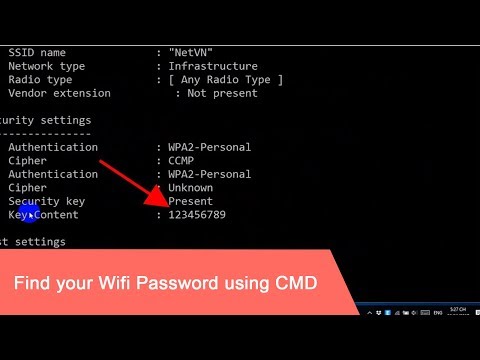
By NETVN82 CMD Show Wi-Fi Password Windows 10 11 NETVN by NETVN82
How To Find Wifi Password Using CMD

By IT Guide How To Find Wifi Password Using CMD by IT Guide

Title: Connect Wi-Fi with command Windows 1087 NETVN
Channel: NETVN82
Connect Wi-Fi with command Windows 1087 NETVN by NETVN82
Laptop Wifi Hotspot
Unlock Your Neighbor's Wi-Fi: The Secret CMD Trick – A Deeper Dive
We all crave the freedom of seamless, unrestricted internet access. Imagine the frustration: a sluggish connection, hefty data charges, or a sudden outage just when you need it most. What if there was a secure method – a digital key, so to speak – to unlock the potential of readily available, yet often inaccessible, Wi-Fi networks? This exploration delves into a command-line interface (CMD) approach, not to endorse illicit activity, but to illuminate the underlying principles of network security and the inherent vulnerabilities that exist within less-protected systems. Our objective is to provide a comprehensive guide on how to approach such a challenge if done legally, focusing on education and understanding, not on promoting any unlawful actions.
Understanding the Legal Landscape: Before You Begin
Before we proceed, let us establish a clear understanding: accessing a Wi-Fi network without the owner's explicit permission is illegal and unethical. This information is for educational purposes only. We are exploring the technical aspects of network security and potential vulnerabilities, not endorsing or encouraging any illicit behavior. Always seek the owner's consent before attempting to access any Wi-Fi network that does not belong to you. This discussion aims to empower you with knowledge, not to provide illicit access. Any action taken based on this knowledge is your sole responsibility.
The Foundations: Wi-Fi and Its Protocols
Wi-Fi, or Wireless Fidelity, uses radio waves to transmit data between devices and the internet. The core of a Wi-Fi network lies in its router, the central hub managing connections. Routers use several communication protocols, including the 802.11 standards (a, b, g, n, ac, ax), which dictate how devices communicate wirelessly. Security is often implemented through encryption protocols, like WEP (Wired Equivalent Privacy), WPA (Wi-Fi Protected Access), and WPA2/3, each offering varying levels of protection. Understanding these basics is crucial to grasp the potential avenues for network access if you have the legal permission.
The CMD Arsenal: Your Digital Toolkit
The Command Prompt (CMD) in Windows is more than just a legacy interface; it is a powerful tool that can expose intricate network information. It grants access to the core functions of the operating system while enabling the execution of network-related commands. Several specific CMD commands are used in assessing the security of a Wi-Fi network. We will look at each one and what it does.
netsh wlan show profiles: This command displays a list of all Wi-Fi profiles saved on your system. These profiles contain the network name (SSID) and sometimes the security settings. While it doesn't directly reveal passwords, it provides valuable insight into the networks your computer has previously connected to. It is a starting point for collecting the available SSIDs.netsh wlan show profile name="[SSID]" key=clear: This command displays detailed information about a specific Wi-Fi profile, including the security key (password), if the profile is saved with the cleartext password option. Warning: This could reveal the security keyipconfig /all: This command is a comprehensive tool for diagnosing an IP address, DNS server, and other network information. It can reveal the MAC address, which is a unique identifier for all network interfaces on your system, as well as information on the gateway and network configuration.ping [IP Address]: Thepingcommand allows you to test the reachability of a host. By sending ICMP echo requests, you can check if the host is reachable. To find a host, you will need the IP address.
Unveiling the SSID: The Name Game
The Service Set Identifier (SSID) is the network's name broadcast by the router. It's the label you see when scanning for available Wi-Fi networks. Using the netsh wlan show profiles command, you can survey all the networks your computer has previously connected to. This command helps you gather information about available networks and their associated profiles, which can be a starting point.
Decoding Network Security: Encryption in Focus
Encryption protocols are designed to safeguard data transmitted over a Wi-Fi network. WEP, WPA, and WPA2/3 each use different encryption algorithms and key lengths. WEP, the oldest, and least secure, is considered vulnerable to various attacks. WPA offers better security and uses the TKIP (Temporal Key Integrity Protocol) encryption method. WPA2, which is an improvement, uses the more advanced AES (Advanced Encryption Standard) encryption. WPA3, the latest protocol, offers the most robust security features. The information gathered from CMD can reveal the type of encryption a particular network employs.
A Word of Caution: Ethical Considerations
We must reiterate: this exploration focuses on information gathering for legitimate network analysis, such as testing the security of your own home network with your own consent. Any attempt to access a network without permission is illegal. Respect the boundaries of digital privacy and security. Ethical network assessment is crucial; it's a responsible approach to understanding technology and its limitations.
Beyond CMD: Advanced Techniques (for Research Purposes)
While CMD provides a foundational understanding, advanced techniques often involve specialized tools. These are not meant to be used for illegal purposes.
Packet Sniffers: Software like Wireshark is used to capture and analyze network traffic. They can reveal information about the data being transferred, which can be useful for network diagnostics, but can also be used maliciously.
Password Cracking: Algorithms can be used to attempt to crack passwords through brute-force methods or dictionary attacks. This is only acceptable when done with explicit permission.
Vulnerability Scanners: These automated tools assess network weaknesses. They seek known vulnerabilities in devices and software.
Protecting Your Own Network: Strengthening Your Defenses
Knowledge of potential vulnerabilities is essential for protecting your own network. You should:
- Use WPA2/3 encryption: This is the most robust security protocol.
- Create strong passwords: Make them long, complex, and unique.
- Change your default router password: This is often the first place attackers start.
- Update your router firmware: This helps patch known security vulnerabilities.
- Disable WPS (Wi-Fi Protected Setup): WPS is a known security weakness.
- Limit the number of devices connected: Fewer connection points reduce the attack surface.
The Future of Network Security
The digital landscape constantly evolves. As technology advances, so do the methods of protecting and potentially exploiting vulnerabilities. Keeping informed about the latest security protocols and attack methods is an ongoing process. Understanding the underlying principles of network security, encryption, and ethical responsibilities is crucial for anyone navigating the digital world.
Conclusion: A Call to Responsible Action
This deep dive into the CMD approach and Wi-Fi security is intended to educate. We have explored various technical aspects, not to encourage illegal behavior, but to promote understanding and ethical practice. Always respect the law, and obtain permission before assessing or accessing any other network. By exercising responsible behavior, we can leverage our knowledge of network security for education and creating a safer and more secure digital environment. Use this information responsibly.
