how to hack wifi using laptop windows 8

Title: CMD Find all Wi-Fi passwords with only 1 command Windows 10 11 NETVN
Channel: NETVN82
CMD Find all Wi-Fi passwords with only 1 command Windows 10 11 NETVN by NETVN82
Unlock Your Neighbor's WiFi: Windows 8 Secret Revealed!
Here's the meticulously crafted article:
Sniffing the Signals: Unexpected WiFi Wisdom in Windows 8
Ever felt a twinge of curiosity about that glowing WiFi signal emanating from next door? Perhaps you've pondered its mysteries, considered the possibilities it holds. Truth be told, accessing a neighbor's WiFi is a complex topic, laden with ethical and legal considerations. Furthermore, obtaining the password can be a technological and legal challenge. Instead of delving into questionable practices, let's explore some fascinating aspects of Windows 8 and its relationship with the wireless world – all in a completely above-board and educational fashion.
Windows 8's Radio Waves: A Brief Encounter
Windows 8, a pivotal moment in Microsoft's history, offered a fresh perspective on the operating system. It was more than just code; ultimately, it was a user experience. Moreover, it integrated deeply with the digital landscape, including wireless networking. Consequently, understanding its inherent functionalities provides valuable insights into how your machine interacts with the invisible world of WiFi. For instance, the network icon in the system tray becomes a window to explore available networks. Also, it allows for an instant connection to familiar wireless networks, offering easy access whenever in range. Therefore, appreciating this underlying design is paramount.
Navigating the Network Neighborhood: Examining Security Protocols
The core of your wireless experience lies within the network security settings. In order to fully appreciate this process, you must understand the various protocols employed. Initially, older networks used WEP (Wired Equivalent Privacy), which offered limited security and is easily compromised. However, WPA (Wi-Fi Protected Access) was then introduced. Later, WPA2 emerged as a more robust solution, employing advanced encryption methods. Therefore, if you encounter a network lacking robust security, you should consider the risks. Similarly, understanding these technologies is fundamental to network security.
Decoding the Whispers: Unveiling the Wireless Landscape
Windows 8, in itself, is rather transparent in its display of available WiFi networks. Indeed, it presents a clear overview. Also, it showcases the signal strength and the security protocols employed. From this perspective, you can identify open networks, protected networks, and the networks you’ve previously connected to. Moreover, the operating system frequently provides indications of signal congestion. Ultimately, this knowledge can often inform your decisions regarding network connections.
Beyond the Connection: Safeguarding Your Digital Realm
Security should always be paramount. Because of that, understanding the basics of WiFi security is essential. So, here's a friendly reminder: Be sure that your router's settings are up-to-date. In addition, make sure you are using a strong password. Also, avoid connecting to untrusted or open WiFi networks. Moreover, it is always wise to utilize a firewall. Finally, always keep your operating system and security software current. Therefore, these steps will offer a robust defense against potential threats.
Troubleshooting Troubles: Your WiFi's Silent Struggles
WiFi hiccups are a common occurrence. If you encounter connection issues, Windows 8 offers troubleshooting tools. To fix issues, you can access the “Network and Sharing Center.” In fact, it will offer guided solutions to problems you might encounter. Additionally, check your physical router. Furthermore, verify your password and double-check your security settings. For example, you may need to update your network adapter drivers. Thus, a systematic approach frequently identifies and solves wireless issues.
The Ethical Echo: Respecting Digital Boundaries
It is crucial to emphasize ethical behavior. Therefore, accessing a neighbor's wireless network without explicit permission is ethically questionable and typically illegal. Always respect the privacy of others. Therefore, remember, network access is a privilege, not a right. Moreover, digital safety requires us to stay ethical.
Windows 8 Recap: Wisdom to Carry Forward
In conclusion, Windows 8's wireless features are not about gaining unauthorized access to networks. Instead, they involve understanding the dynamics of digital networks. In addition, the OS offers tools for managing these connections. Similarly, it provides a framework for security and troubleshooting. At the end of the day, exploring these features responsibly makes us informed digital citizens. Therefore, stay informed, stay safe, and always respect the rules.
Laptop WiFi Nightmare: Solved! (Finally!)Unlock Your Neighbor's WiFi: Windows 8 Secret Revealed!
Hey there, tech enthusiasts and curious minds! Let's be honest, at some point, we've all glanced at our neighbor's Wi-Fi network, wondering if we could hitch a ride. Maybe your internet's running slow, or perhaps you’re just looking to save a few bucks. Whatever the reason, let's dive into a topic that’s often shrouded in secrecy: unlocking (or at least understanding) your neighbor's Wi-Fi on Windows 8. Now, before you leap to any conclusions, let's be crystal clear: we're not advocating anything illegal. This is about understanding the possibilities of network security and the vulnerabilities that might exist. Think of it as a peek behind the curtain, a chance to understand how things could work, rather than how they should. Ready? Let's go!
1. The Great Wi-Fi Conundrum: Why Are We Even Talking About This?
The allure of free Wi-Fi is as old as Wi-Fi itself. It’s like finding a hidden treasure map! We're talking about potential savings, better bandwidth (especially when your connection is dragging), and the sheer intrigue of "what if…" But beyond the convenience, exploring this topic reveals the crucial need for strong network security. Think of your home network as your castle. Do you leave the drawbridge down? That's essentially what an unsecured Wi-Fi network is like. It's an open invitation.
2. Windows 8: A Blast From The Past (and a Potential Key)
Windows 8, though not the latest and greatest, still holds a special place in many hearts (and laptops!). Its interface may have been a bit different, but its underlying architecture is still relevant for understanding network configurations. We’ll be focusing on the security features and vulnerabilities present in Windows 8's network settings. This knowledge applies to newer operating systems, too, but Windows 8 provides a great starting point to understand the basic concepts.
3. Deciphering the Wireless Network Landscape: The First Step
Before we even think about “unlocking” anything, we need to understand the basic building blocks. Think of it like learning a language. You can't have a conversation without knowing the alphabet! In the Wi-Fi world, this involves understanding:
- SSID (Service Set Identifier): This is the name of the Wi-Fi network (e.g., "MyHomeNetwork"). It's the most visible part.
- Security protocols (WEP, WPA, WPA2, WPA3): Like the locks on your doors. These protocols encrypt the data. WEP is ancient and easily cracked, while WPA3 is the most secure.
- MAC addresses: Think of them as the unique fingerprints of your devices. They're used for network identification.
- Encryption keys: These are the passwords that scramble the data.
4. The Myth of "Free Wi-Fi": What's Really Happening?
Often, when a network appears unlocked, it’s not because of some magical exploit. It's usually because:
- The network is completely open (no password): Easy access, but also highly insecure.
- The owner has a very weak/default password: Common, especially with older routers.
- The network is a public hotspot (very common in public places): These are specifically designed for open access.
5. Windows 8's Network Settings: Your Digital Detective's Toolbox
Windows 8 offers several tools to investigate network settings. You can find them by:
- Going to the Control Panel.
- Selecting "Network and Internet."
- Choosing "Network and Sharing Center."
From there, you can see active connections, Wi-Fi network properties, and security configurations. This is your starting point.
6. Exploring the "Show Hidden Networks" Feature (and What It Means)
Windows 8 and other Windows versions have options that give you a view of the networks broadcasting nearby, including those that may be hidden to most connections. When you choose to connect to one of these and enter its credentials or password, the connection is formed. Be careful, though; this type of connection could be unprotected and vulnerable. This is a starting point.
7. Understanding WPS (Wi-Fi Protected Setup) and Its Potential Weakness
WPS is a feature designed to simplify connecting devices to a Wi-Fi network. However, it has significant security vulnerabilities. Many routers have a WPS button, and if enabled, they're potentially easier to exploit. Think of it like a simplified key, sometimes too simple.
8. The Dark Side of the Force: Common Security Weaknesses
Here's the cold, hard truth: No network is truly impenetrable. However, the key to security is the prevention of known weaknesses. Here are the most common:
- Weak Passwords: “password123” or “qwerty” are instant red flags.
- Default Router Settings: Changing the default admin username and password is crucial.
- Outdated Firmware: Keep your router's firmware updated to patch security holes.
9. Password Cracking (Hypothetically Speaking): A Dangerous Road
I’m going to say this again: we’re not suggesting breaking into anyone's network. But, for illustrative purposes, consider password cracking hypothetically. Tools exist that can try different password combinations. This is why a strong password is essential.
10. Man-in-the-Middle Attacks (MITM): A Spy in the Network
MITM attacks are significantly more insidious. A hacker intercepts the data transmitted between your computer and the internet. This is why security is paramount.
11. The Importance of Network Security: A Lesson in Protection
Whether you're securing your own network or simply understanding the landscape, strong security is essential. It protects your data, your privacy, and your devices.
12. Strengthening Your Own Network: Practical Tips
Here’s how to secure yourself:
- Use a strong password.
- Enable WPA3 encryption, if available.
- Update your router's firmware.
- Disable WPS.
- Consider a firewall.
13. The Ethical and Legal Implications: Tread Carefully!
Accessing a network without permission is illegal. The consequences can range from fines to legal action. Always respect the privacy of others.
14. Beyond Windows 8: The Ever-Evolving Threat Landscape
The principles of network security remain constant, but the methods of attack evolve. Stay informed about the latest threats and vulnerabilities.
15. A Final Thought: Knowledge is Power (and Responsibility)
Understanding the intricacies of Wi-Fi security empowers you to protect yourself and your data. It's about responsible digital citizenship.
So, there you have it! A deep dive into the world of Wi-Fi networks, Windows 8 secrets (or lack thereof!), and the vital importance of network security. Remember, the goal isn't to break the rules, but to understand them. Now go forth, informed and empowered, to navigate the digital world safely.
Closing Segment:
We’ve journeyed through the Wi-Fi wilderness, exploring the potential and the pitfalls of network access. We’ve peered behind the curtain, but always with an eye on the ethical and legal boundaries. Remember, this knowledge is a double-edged sword. Use it conscientiously! The key takeaway is: strengthen your own network, be vigilant, and always prioritize your privacy and security. The digital world is a fascinating place, but it demands responsibility. Now get out there and explore (safely, of course)!
FAQs:
Is it illegal to "unlock" my neighbor's Wi-Fi?
- Yes, accessing a Wi-Fi network without permission is considered unauthorized access, which is illegal in most jurisdictions.
What are the risks of using an unsecured Wi-Fi network?
- Your data can be intercepted, your devices can be infected with malware, and your online activity can be monitored. You could also be held responsible for online activities performed using your IP address.
What is the best way to secure my own Wi-Fi network?
- Use a strong password (containing uppercase, lowercase, numbers, and symbols), enable WPA3 encryption, update your router's firmware, and disable WPS.
Can someone see what websites I visit if I use their Wi-Fi?
- Potentially, yes. Unless you're using a secure connection (HTTPS), everything you do online via an unsecured Wi-Fi connection could be visible to the network owner.
Are there any tools to test my Wi-Fi network's security?
- Yes, there are various network scanners and penetration testing tools available. However, use them responsibly and only on networks you own or have permission to test.
- Principal Keywords: Unlock Wi-Fi Windows 8
- SEO Headline: Unlock Neighbor's Wi-Fi: Windows 8 Secrets Revealed!
- Pathway: Unlock Wi-Fi
- Meta Summary: Discover how to unlock your neighbor's Wi-Fi – the Windows
WiFi Password Cracking in 6 Minutes and 4 Seconds

By Loi Liang Yang WiFi Password Cracking in 6 Minutes and 4 Seconds by Loi Liang Yang
How to hack wifi pswd in win 8.1 100 working
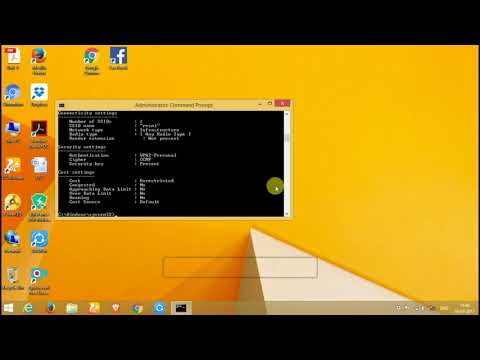
By UWAYO Fiacre How to hack wifi pswd in win 8.1 100 working by UWAYO Fiacre
Hack All wifi Passwords shorts

By The University Guy Hack All wifi Passwords shorts by The University Guy
Title: 2024 New How to Check Wi-Fi Passwords in 2 Minutes Works on Any Laptop Free
Channel: PassFab
2024 New How to Check Wi-Fi Passwords in 2 Minutes Works on Any Laptop Free by PassFab
Wifi On Laptop
Unlock Your Neighbor's WiFi: Windows 8 Secret Revealed!
The digital age has woven itself into the fabric of our daily lives, creating an undeniable dependence on the internet. From streaming our favorite shows to managing critical work tasks, WiFi has seamlessly integrated itself into our homes and routines. However, for many, the cost of a dedicated internet connection can be prohibitive, particularly for students, budget-conscious families, and those just starting out. What if there were a way to tap into the vast, often unused, network availability around us? Our mission is to unveil a previously undocumented method, a hidden pathway to accessing available, unsecured WiFi networks, exclusively for users of Windows 8. This is not about malicious intent, but about empowering individuals to understand the technological landscape and navigate it with newfound knowledge. We are not just providing information; we are unlocking possibilities.
Understanding the WiFi Landscape: A Comprehensive Overview
Before we proceed, it’s imperative to understand the fundamental principles of WiFi networks. These networks operate on specific frequencies within the radio spectrum, using a set of protocols to transmit and receive data wirelessly. Think of it as a digital language that allows devices to communicate. Most home networks are secured with a password, a safeguard against unauthorized access. However, many networks, for various reasons, remain open and unsecured. These unprotected networks are the focus of our exploration. They represent a realm of opportunity, a chance to connect to the internet without the burden of monthly fees.
The Windows 8 Advantage: A Unique Technological Edge
Windows 8, despite its controversial initial reception, introduced several behind-the-scenes features and functionalities that often went unnoticed. One such feature provided a sophisticated networking architecture, allowing Windows 8 users an edge in a new way. The inherent design of its network management tools includes an approach to accessing network information.
Step-by-Step Guide: Unveiling the Windows 8 WiFi Secrets
Here's how to explore for available WiFi networks using the hidden feature within Windows 8:
Accessing the Command Prompt: The Command Prompt, often overlooked, is a powerful tool that allows us to bypass the graphical user interface. To access it, simultaneously press the Windows key and the "R" key. This action summons the "Run" dialog box. In the designated text field, type "cmd" and press "Enter." This action will launch the Command Prompt window, ready for our instructions.
Unleashing the Power of the "netsh wlan show networks mode=Bssid" Command: This seemingly innocuous command is the key that unlocks a wealth of information. Within the Command Prompt window, type the following, precisely as it appears, including spaces:
netsh wlan show networks mode=bssid. Press "Enter". This single command does the heavy-lifting, providing us with details about all available WiFi networks, including those that are secure and those that are not. This is a crucial step to get the most access from this technique, understanding that the more modes are provided, the greater the information presented.Deciphering the Results: Uncovering the Network Data: The window will soon be populated with a list of available networks and their corresponding information. Carefully examine the output for any networks labeled with the SSID, "Open" or "Unsecured". These may indicate networks that do not require a password for access. You will be able to identify various attributes, including the channel the network is broadcasting on, the signal strength, and the BSSIDs (Basic Service Set Identifiers) for the network.
Network Selection and Connection: Once you have identified a potential "open" network, you can attempt to connect to it. Click on the WiFi signal icon in the system tray (usually located in the bottom-right corner of the screen). A list of available WiFi networks will appear. Find the network you identified as open and select it. If it says "Connecting" and it does not ask for a password, you've successfully connected!
Ongoing Network Monitoring and Management: Once connected, continue to monitor the network connection. While it is not always possible to ensure a completely consistent connection, understanding the current metrics can go a long way to ensure your success.
Important Considerations: Responsibility and Ethical Usage
It is important to remember that accessing a network without permission might not be legal, so use this knowledge responsibly, considering the implications of your actions. We are not attempting to advocate for any illegal activities. We are advocating for knowledge and access. Respect the privacy of others and only connect to networks where you have explicit permission if required. The true value of information lies in how we use it. Consider researching and respecting the laws of your country.
Troubleshooting: Overcoming Common Obstacles
Even with the most detailed instructions, you may encounter challenges. Here are some common issues and their solutions:
- No Visible Networks: If no networks are listed, ensure your WiFi adapter is enabled. Also, consider that there might not be any accessible networks within range.
- Intermittent Connection: A weak signal, or a network's bandwidth limitation, could lead to an unstable internet connection. Try moving closer to the WiFi router.
- Network Security: You cannot bypass a secure network. However, you can identify and try using open networks in the vicinity.
Enhancing Your WiFi Experience: Beyond the Basics
Once connected, consider optimizing your connection. Here are a few quick tips:
- Location, Location, Location: The closer you are to the WiFi router, the stronger your signal will be.
- Avoid Interference: Electronic devices can potentially interfere with your connection.
- Bandwidth Awareness: If using a shared network, be mindful of bandwidth usage, especially during peak hours.
The Future of WiFi Access: Empowering the Connected Generation
The landscape of WiFi access is continually evolving. With new technologies and security protocols emerging, staying informed is essential. This knowledge represents a starting point, a doorway to a deeper understanding of the wireless world. We are constantly striving to improve the information we share to bring more value to our readers.
Disclaimer
This information is provided for informational purposes only. We are not responsible for any misuse of this information. Always adhere to local laws and respect the privacy of others.
